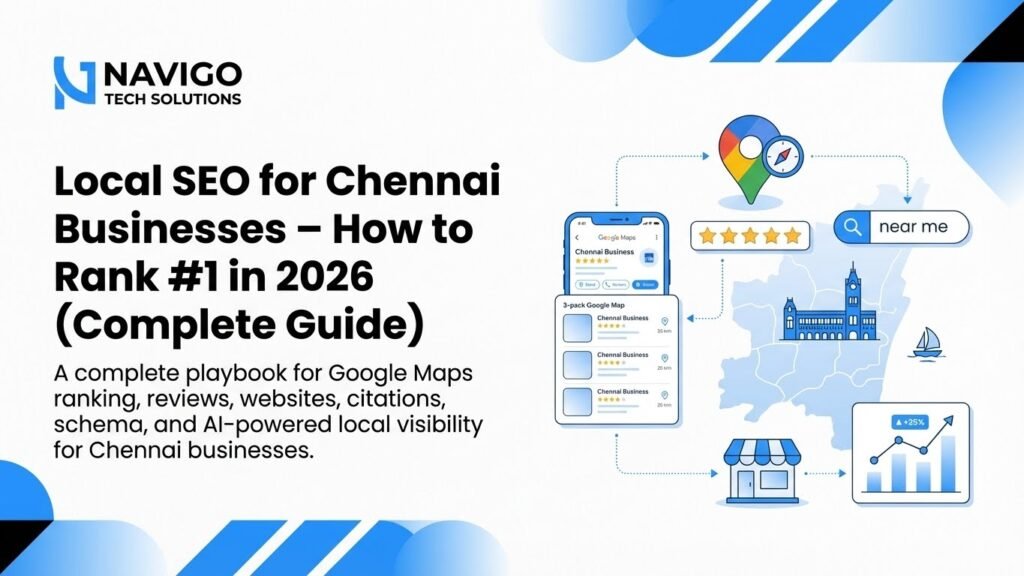

- How to add your business on Google Maps step-by-step
- Why local visibility drives more sales than social media
- How to verify your listing instantly or via post
- Common mistakes that get listings suspended
Why You Must Add Your Business on Google Maps
Listing on Google Maps gives your business:
- Free local visibility
- Free calls and inquiries from customers
- Free walk-in footfall for local businesses
- Trust and credibility from reviews
- Better ranking in “near me” and local searches
For businesses in Tamil Nadu — salons, clinics, retail shops, real-estate, digital agencies — Google Maps often drives more clients than social media.
To complement your online presence, you can also check our full suite of services at NaviGo Tech Solutions: Web Development, SEO & Digital Marketing Services.
Step-by-Step: How to Add Your Business on Google Maps (2026)
You must use the official profile platform: Google Business Profile – google.com/business
Step 1: Go to Google Business Profile
Visit google.com/business → Manage Now.
Step 2: Sign in with your Google account
Use a business or professional email if available.
Step 3: Enter your business name
E.g., “NaviGo Tech Solutions – Chennai” (or your shop/brand name).
Step 4: Choose your business category
Examples: Digital marketing agency, Salon, Bakery, Retail store, etc. Choose accurately — it impacts how Google shows you to customers.
Step 5: Add your location
- If you have a physical shop/office: Add full address.
- If you serve clients remotely or online: select “I deliver goods and services to my customers.”
Step 6: Add contact details
Include the official phone number, and website if you have one. If you don’t have a website yet — check our Website Development Services at NaviGo Tech Solutions.
Step 7: Add business hours
Set working times — it helps build trust and avoids confusion.
Step 8: Verify your business listing
Google may verify by:
- OTP or phone call
- Video verification
- Postcard mailed to your address (less common now)
Once verified, your profile becomes public and customers can start discovering you on Maps.
Verification & Time: How Long It Takes
- Phone / OTP verification — instant
- Email verification — minutes to an hour
- Video verification — a few minutes (if required)
- Postcard verification — 5 to 12 days
Usually, your business becomes visible within 1 hour to 48 hours after verification.
Why Your Business Might Not Appear on Google Maps
Common problems if your listing doesn’t show up:
- Incomplete or incorrect address
- Wrong business category
- Business not verified
- Zero reviews or weak profile
- High competition
- Violation of Google’s business listing guidelines
Following official rules is critical. See Google Business Profile Guidelines.
How to Rank Your Business on Google Maps (Local SEO Tips)
• Complete Your Profile 100%
Fill out name, category, description, contact, hours, services, address — every field helps.
• Add High-Quality Photos
Upload 10–20 photos: shop exterior, interior, products, team — this boosts trust and visibility.
• Get Real Reviews
Customer reviews directly influence ranking and trust. Ask satisfied customers to leave a review. Use the review link or QR code from your dashboard.
• Post Regular Updates
Weekly posts about offers, new services or updates help signal activity to Google.
• Optimize Business Title & Description with Keywords
Include city + service for local ranking, e.g., “Digital Marketing Agency Chennai”, “Salon in T Nagar Chennai”.
• Avoid Spam or Fake Info
Fake addresses, fake reviews or spam content can lead to suspension — not worth the risk.
Need Help? We Cover Everything.
If you want a complete business-presence setup — Maps listing, website, SEO, branding, lead automation — we at NaviGo Tech Solutions handle it all.